Apple Mac Studio (M4 Max) review: a quiet desktop for heavy creative work and local LLMs
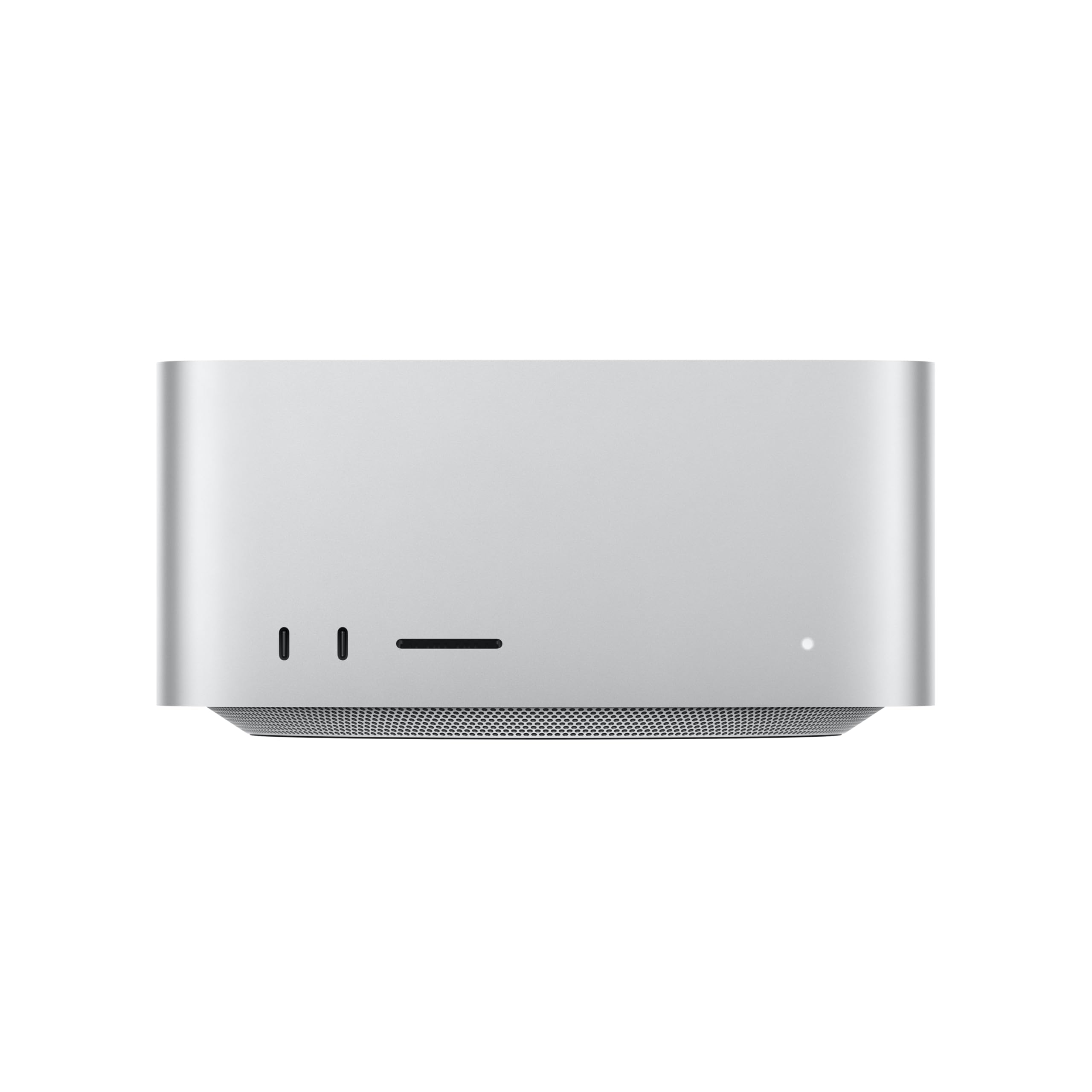

Up to 128GB unified memory in a 7.7-inch box for large local models
- Chip
- M4 Max
- Unified Memory
- 128 GB
- Memory Bandwidth
- 546 GB/s
- Tokens/sec (70B)
- 9 tok/s
- 128GB unified memory loads large models
- 7.7-inch square fits under monitors
- No CUDA: some AI tools unsupported
The deciding spec on this Mac Studio is the memory: the M4 Max tops out at 128GB of unified memory that the GPU can address directly. That is enough to hold a 4-bit 70B open-weight model with room for a long context window, something no consumer graphics card offers at this price. Here is whether the $3,399 configuration is the right way to buy into that.
| Chip | M4 Max |
|---|---|
| Unified Memory | 128 GB |
| Memory Bandwidth | 546 GB/s |
| Tokens/sec (70B) | 9 tok/s |
Design and build quality
The Mac Studio's enclosure is a 7.7-inch square aluminium block that Apple designed to sit under most displays. On a real desk, that means it can live between your monitor's stand legs or beside a keyboard and doesn't need floor space. A tower workstation with a discrete GPU usually has to go under the desk or take up a corner of it. If you work in a small studio, a shared office or a home setup where the computer stays in view, that difference shows up every day.

The build is the same one-piece aluminium design Apple uses across its pro desktops. There are no side panels, no visible screws and no RGB lighting. That makes it easy to place in client-facing rooms such as edit suites and scoring stages, where a gaming-style tower would look out of place. It is also a sealed appliance, and that is the build's main trade-off, covered below.
Ports where your hands actually are
The Mac Studio has front-accessible ports alongside a full rear I/O panel. For an editor offloading camera cards or a composer plugging in a USB-C controller, the front connections save you reaching around the back of the machine every session. Those quick connections are the main day-to-day advantage over two other compact setups:
- Mac mini with a hub: the Mac mini is smaller still, but heavy peripheral users often add a hub or dock, which brings back the clutter the small chassis was meant to remove.
- Laptop on a dock: this adds a separate dock, a power brick and a cable you plug in every morning, and the laptop's own ports sit at the side of a closed lid.
The rear panel takes the permanent connections, such as displays, storage arrays, audio interfaces and network. Once those are cabled and routed, you rarely need to touch the back again.
The trade-off: zero internal expansion
The Mac Studio has no GPU slot, no RAM slots and no user-replaceable SSD. Unified memory and storage are fixed when you order it, and the GPU is part of the M4 Max chip. If your workloads grow beyond the configuration you buy, the only fix is external storage or a new machine.
This is the real price of the compact chassis. A PC workstation lets you buy a modest GPU now and drop in a faster card in two years, or add RAM when a project demands it. With the Mac Studio, the configuration you pick at checkout is the configuration you keep. The performance section below shows how directly memory size limits which models and projects you can run.
External expansion is still possible. Fast external SSDs and storage enclosures cover capacity well, so archive and project-library storage is a smaller concern. GPU compute and memory capacity are a different matter: no cable fixes those.
| Build factor | Mac Studio (M4 Max) | Discrete-GPU tower workstation |
|---|---|---|
| Footprint | 7.7-inch square, fits under most displays | Floor or large desk area |
| Front access | Front ports plus rear I/O | Varies by case; often top or front panel |
| GPU upgrade | Not possible; GPU is integrated into the chip | Swap cards as needed |
| RAM upgrade | Not possible; fixed at purchase | DIMM slots, expandable |
| Internal storage upgrade | Not user-upgradeable | M.2 and drive bays |
| Visual presence | Quiet aluminium block, no lighting | Depends on case |
Bottom line on the build: the Mac Studio puts workstation-class unified memory into a box that takes up desk space like a large book. If you value a clean, compact setup and can commit to a configuration upfront, the sealed design costs you little. If you expect to upgrade a GPU or add RAM later, a tower is the better fit.
Performance for creative work and local LLMs
The M4 Max is easiest to judge by asking which part of the chip your work uses most. For spreadsheets, browsing and 4K proxy edits, almost any recent Apple silicon Mac is fast enough. The GPU and memory system are what justify a $3,399 price, and they pay off mainly in three areas: 3D viewports, very large in-memory projects, and local LLM inference.
GPU features: where they actually show up
Apple highlights Dynamic Caching, mesh shading and hardware ray tracing. These features have no effect on office work or a typical Final Cut timeline.
- Dynamic Caching assigns on-chip GPU memory at runtime rather than reserving a worst-case amount per shader. This helps most with complex, uneven scenes, such as a heavy Blender or Houdini viewport with many material types, where it keeps more of the GPU busy.
- Mesh shading lets apps that support it cull and process dense geometry more efficiently. The benefit appears as smoother interaction with high-poly VFX and set-dressing scenes.
- Hardware ray tracing speeds up ray-traced previews and GPU renders in engines with Metal RT support. You get faster look-dev iterations, though it will not match a high-end discrete card on final-frame throughput.
For film scoring, the GPU matters far less. Large orchestral sample libraries depend on RAM capacity and SSD streaming, so a composer is better off spending on unified memory than chasing GPU cores.
Local LLMs: bandwidth sets generation, compute sets prefill
Running a local LLM has two phases, and the M4 Max performs very differently in each.
Generation (tokens per second) is limited by memory bandwidth, because every new token requires reading most of the model's weights. Apple quotes up to 546GB/s for the full M4 Max. The lower-binned chip has less bandwidth, so check which one your configuration uses. A quick calculation gives the ceiling: a 70B model at Q4_K_M occupies roughly 40GB of weights, so 546GB/s caps generation at about 13 tok/s before any real-world overhead. Expect single-digit to low-teens output on 70B-class models, and much faster output on 8B–14B models. That speed is comfortable for chat and coding assistance, but slow for bulk batch jobs.
Prompt processing (prefill) is limited by raw GPU compute, and this is the M4 Max's weak point against a high-end discrete GPU. If you paste a 30,000-token codebase or a long document into a large context window, time to first token (TTFT) can stretch to many seconds, or longer on 70B models. A discrete-GPU tower gets through that prefill much faster, as long as the model fits in its VRAM.
Memory size decides which models you can run
On a Mac, the model must fit in unified memory alongside macOS and your apps. You cannot add more later.
| Unified memory | Realistic largest model (4-bit quantization) | Practical note |
|---|---|---|
| 128GB | 70B at Q4_K_M, fully resident | Leaves room for long context and a running DCC app |
| 64GB | 30B–34B class comfortably; 70B only at aggressive quantization | 70B at Q4_K_M is too tight to be practical |
| 36–48GB | 30B-class at best, often 14B–24B with real context | Within reach of a cheaper Mac mini M4 Pro |
This is why the configuration matters more than the chip name. With 128GB, a 70B open-weight model at Q4_K_M runs entirely in memory. On smaller configurations, the practical limit drops toward 30B-class models, and a higher-bandwidth chip cannot make up for a model that doesn't fit.
Where it sits in the catalog
Range across the products compared here
Read the bars as a position between two extremes. On price, the M4 Max Mac Studio sits well above the cheapest options in the catalog, such as compact mini PCs and the Mac mini, and well below the priciest, the M3 Ultra-class machines and discrete-GPU workstations. On memory, its 128GB ceiling sits in the upper middle. It exceeds what budget rivals offer as GPU-addressable memory, but it is a fraction of the M3 Ultra's 512GB.
That middle position is the main argument for buying it. You get enough unified memory for 70B-class inference and very large VFX scenes, the bandwidth to make generation usable, and a price below Ultra-tier machines. The cost is prefill speed that trails discrete GPUs.
Living with it: noise, heat and software
Much of the Mac Studio's case rests on how it behaves an hour into a render or a long inference run. Apple says the thermal system is designed to let the machine run intensive tasks while staying quiet enough not to interfere with your work. If that holds, a multi-hour export, a fluid simulation or a batch of LLM prompts shouldn't bring the sharp fan ramp typical of a thin laptop or a gaming tower with a discrete GPU at full draw.
That matters in a few specific places. Film composers and podcasters recording in the same room as their computer need a machine that won't show up in a condenser mic during a take. Shared offices and home studios benefit too, because a quiet box can stay on a desk all day without needing a closet or a long Thunderbolt cable. A discrete-GPU workstation can be faster at some tasks, but under heavy load it usually gets much louder. If your desk doubles as a recording booth, the Mac Studio's quieter sustained running can matter more than benchmark charts.
Apple Intelligence vs. running your own models
"AI on a Mac" can mean two very different things, and only one of them needs 128GB. Apple Intelligence is Apple's built-in assistant layer for writing tools, summaries and system features. It runs on-device where it can, and Apple applies its privacy protections, including its claim that no one else can access your data, not even Apple. It's useful, but you don't choose the model, set the context window or load your own weights.
Running a local LLM is a separate workflow that you set up yourself. Tools such as Ollama, LM Studio and Apple's MLX framework let you download open-weight models, choose a quantization such as Q4_K_M and run inference entirely on the machine. This is where the unified memory and memory bandwidth discussed earlier actually pay off. Apple Intelligence doesn't need 128GB, but a 70B-parameter model does. Ollama and LM Studio are the easiest starting points. MLX is worth learning if you want the most Apple silicon-native performance or plan to fine-tune smaller models.
| Aspect | Apple Intelligence | Local LLM (Ollama / LM Studio / MLX) |
|---|---|---|
| Who picks the model | Apple | You, from open-weight releases |
| Setup | Built into macOS | Install a tool, download weights |
| Memory demand | Modest | Scales with parameters and quantization |
| Typical use | System-wide writing and summarising | Coding assistants, private document Q&A, agents, experimentation |
| Benefits from 64–128GB | Not meaningfully | Directly |
The software caveat: check for CUDA
The biggest risk for a buyer here isn't the hardware. It's the software stack. Some AI and render tools are built only for NVIDIA's CUDA and don't run natively on Apple silicon. Common examples include some research code that assumes a CUDA GPU, certain GPU renderers and plugins, and training scripts written for NVIDIA hardware. The Mac Studio can't run these, however much memory you buy.
Mainstream creative apps are in a much better position. Native Apple silicon builds of the major video, audio and 3D suites are now common. PyTorch supports Apple's Metal backend, and llama.cpp-based tools run well. The gaps tend to be the specialised tools your pipeline depends on.
Before you buy, go through your workflow one tool at a time. List each app, renderer, plugin and Python library you rely on, then check that each has native Apple silicon or Metal support. Also check whether any client or collaborator hands you projects that assume CUDA. If even one essential step is CUDA-only, a discrete-GPU PC, or a hybrid setup with cloud GPUs for that one step, will serve you better than the quietest Mac on the market.
How it compares with the alternatives
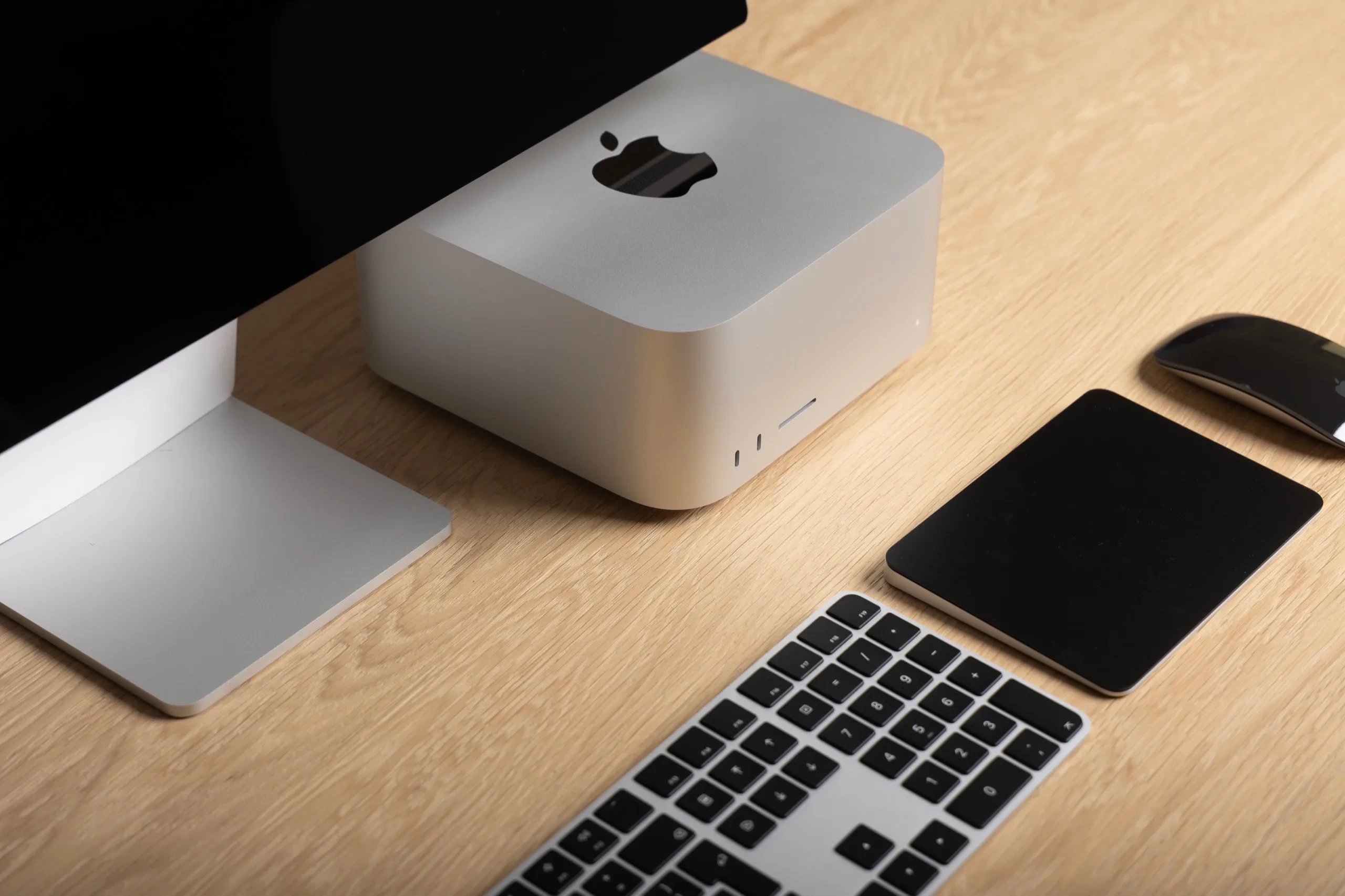
Most buyers aren't choosing between the Mac Studio and nothing. They're choosing between it and four other setups: a smaller Mac, a bigger Mac, an AMD Strix Halo mini PC, or a tower with a discrete GPU. For local LLMs, the deciding factors are how much memory the GPU can address and how fast that memory feeds it. For creative work, they are sustained performance under load and whether your apps run natively.
| Factor | Mac Studio (M4 Max) | Mac mini (M4 Pro) | Mac Studio (M3 Ultra) | Strix Halo mini PC | Discrete-GPU tower |
|---|---|---|---|---|---|
| Max GPU-addressable memory | Up to 128GB unified memory | Up to 64GB unified memory | Up to 512GB unified memory | Up to 128GB shared pool; the OS and drivers cap how much the GPU can use | Limited to the card's own memory, typically 16–32GB on consumer cards |
| Memory bandwidth | Up to 546GB/s (Apple figure) | Roughly half the M4 Max | Higher than M4 Max | Roughly half the M4 Max | Far higher on the card, but only for what fits |
| Comfortable model range (4-bit) | Up to 70B at Q4_K_M | 8B–30B | 70B at higher precision, up to very large models | Up to 70B, at lower tok/s | 8B–30B on one card; larger models need splitting or offloading |
| Prompt processing (prefill) | Moderate | Slower | Moderate to good | Moderate | Fastest |
| Software ecosystem | MLX, Metal, llama.cpp | MLX, Metal, llama.cpp | MLX, Metal, llama.cpp | ROCm/Vulkan, still maturing | CUDA, the broadest support |
| Noise under sustained load | Quiet | Quiet | Quiet | Varies by chassis; small fans can whine | Typically the loudest |
| Upgrade path | None | None | None | None (memory is soldered) | GPU, RAM and storage are all swappable |
Mac mini M4 Pro: the sensible step down
The Mac mini M4 Pro is cheaper, smaller, and runs the same MLX and Metal software. The limits are its 64GB memory ceiling and roughly half the memory bandwidth of the full M4 Max. Bandwidth sets tok/s, so even a model that fits generates noticeably slower.
In practice, the mini suits 8B–30B models and 4K editing timelines that don't stack many effects layers. If you know your work stays in that range, read the value section before paying for a Studio.
Mac Studio M3 Ultra: when 128GB isn't enough
The M3 Ultra uses the same enclosure but scales to 512GB of unified memory and 16TB of storage, at a much higher price. That headroom lets you run very large open-weight models, 70B-class models at 8-bit instead of 4-bit, or several models at once with long context windows.
For a single 70B model at Q4_K_M, the M4 Max already holds it all in memory. The Ultra's extra cost only pays off once your target is more than 128GB.
Strix Halo mini PCs: the closest non-Apple rival
AMD's Strix Halo (Ryzen AI Max) platform copies the Mac's approach: a large shared memory pool of up to 128GB that the integrated GPU can address. That makes it the only non-Apple compact box that runs 70B models without splitting them across cards.
The trade-offs:
- Lower memory bandwidth, so generation is slower on the same model.
- A less mature software stack. ROCm and Vulkan backends work, but MLX-style polish and day-one model support aren't guaranteed.
- Noise depends on the vendor's chassis. Small fans running 100+ watts for long periods can be audible.
It runs Windows or Linux natively, which matters if your other tools aren't on macOS.
Discrete-GPU tower: fast, but memory-bound
A tower with a high-end NVIDIA card wins on prompt processing by a wide margin. Long documents, RAG pipelines and big code contexts reach the first token sooner. It also has CUDA, which nearly every ML tool and many GPU renderers target first.
The constraint is the card's memory. Consumer cards top out around 32GB, so a 70B model at Q4_K_M has to be split across multiple GPUs or partly offloaded to system RAM, where speed collapses. Multi-GPU setups add power draw, heat and fan noise that the Mac Studio avoids.
The tower's big advantage is that you can swap the GPU later. Every Apple silicon configuration is fixed at purchase.
Choose a discrete-GPU tower if your work depends on CUDA or fast prefill and your models fit in 24–32GB. Choose the M4 Max Mac Studio if you need 70B-class models or heavy creative projects held entirely in memory on a quiet desk. Move up to the M3 Ultra only if you need more than 128GB, and down to the Mac mini M4 Pro if 64GB covers everything you'll run.
Pros
- 128GB unified memory loads large models
- 7.7-inch square fits under monitors
- Quiet cooling during long inference runs
- One box, no multi-GPU wiring
Cons
- No CUDA: some AI tools unsupported
- Memory fixed at purchase, no upgrades
- 128GB cap; M3 Ultra reaches 512GB
Who should buy it
The M4 Max Mac Studio makes sense when your working set (scene files, sample libraries, model weights) has outgrown a laptop or a Mac mini, and you want that data held in unified memory on a desk that stays quiet. If memory capacity isn't your bottleneck, much of the $3,399 goes to headroom you won't use.
Buyers it suits
VFX and 3D artists get the most from the GPU feature set Apple highlights: Dynamic Caching, mesh shading and hardware ray tracing. Heavy scenes with large textures and geometry can stay resident in one memory pool instead of being split across system RAM and a graphics card's memory. Long renders also play to the thermal design covered above, which matters if you share an office or sit next to the machine while a bake runs.
Film composers running large sample libraries are a natural fit, and Apple names film scoring as a target workload. Orchestral templates that preload strings, brass and percussion articulations into RAM eat memory quickly. A 64GB or 128GB configuration lets a full template stay loaded between sessions. A quiet chassis under the display also helps when you're recording or mixing in the same room.
Developers who want 70B-class local LLMs have the clearest case. With 128GB of unified memory, a 70B model at Q4_K_M quantization fits entirely in memory with room left for a longer context window and your other tools. The full M4 Max's quoted memory bandwidth of up to 546GB/s sets your generation speed in tokens per second. For private, on-device inference without a loud multi-GPU tower, few desktops this size can do the same.
Buyers who should skip it
CUDA-dependent ML workflows are the main dealbreaker. If your training scripts, render engine or inference stack assumes an NVIDIA GPU, it won't run natively on Apple silicon. Porting to Metal or MLX may not be practical on a deadline. Inference on open-weight models through Mac-native runtimes is well supported, but fine-tuning pipelines and some research code are not.
Buyers who expect to upgrade the GPU later should look at a tower instead. Memory, storage and graphics are fixed at purchase, with no slots inside. A discrete-GPU desktop lets you swap a graphics card in two years. The Mac Studio asks you to buy the configuration you'll need for its whole working life.
Anyone whose work fits a Mac mini is overspending here. If your largest project or model fits comfortably in 36–48GB, such as 8B–14B local LLMs, 4K editing or moderate sample libraries, the Mac mini M4 Pro delivers that more cheaply and in a smaller footprint.
If you need more than 128GB, this isn't your machine. That is M3 Ultra territory, covered in the comparison above: models well beyond 70B parameters, or several large models running side by side.
Good for
- VFX and 3D artists working with large scenes that benefit from hardware ray tracing and mesh shading
- Film composers who keep large orchestral sample libraries loaded in RAM all day
- Developers running 70B-class open-weight models at Q4_K_M locally on a quiet desk (128GB configuration)
- Studios and home offices where fan noise during long renders or inference is a real problem
Not for
- ML engineers whose tools or training code require CUDA
- Buyers who plan to add a faster GPU, more RAM or extra internal SSDs later
- Users whose projects and models fit in 36–48GB, which a Mac mini handles for less
- Anyone who needs more than 128GB of unified memory, who should look at the M3 Ultra Mac Studio
Quick match by workload
| Your main workload | Recommendation |
|---|---|
| 70B local LLM inference, private data | Buy, with 128GB |
| Large orchestral templates, film scoring | Buy, sized to your loaded template |
| GPU rendering and VFX in macOS-native apps | Buy |
| CUDA-based training or render pipelines | Skip, choose a discrete-GPU tower |
| Models or projects under ~48GB | Skip, choose a Mac mini M4 Pro |
| Models needing more than 128GB | Skip, choose the M3 Ultra Mac Studio |
Verdict
The M4 Max Mac Studio is the most practical quiet desktop for keeping large creative projects and local LLMs entirely in unified memory, at well below M3 Ultra pricing. Buy it for memory capacity and sustained, low-noise performance, and size the RAM before you think about anything else.
At around $3,399, the Mac Studio (M4 Max) doesn't win on raw CPU benchmarks. It wins because it puts up to 128GB of unified memory behind a GPU with up to 546GB/s of memory bandwidth, in a 7.7-inch box designed to stay quiet through long renders and inference runs. For a VFX artist with a heavy timeline, a composer streaming large sample libraries, or a developer running a 70B-parameter open-weight model at Q4_K_M locally, that combination is hard to match elsewhere. The alternatives are a much more expensive M3 Ultra or a louder tower whose discrete GPU has far less addressable memory.
Where it falls short
Three caveats are real, and none of them can be fixed after purchase.
- Memory and storage are fixed. Apple silicon has no RAM or SSD slots and no GPU upgrade path. If you under-buy, your only remedy is selling the machine and buying another.
- Prefill is slower than on discrete GPUs. Bandwidth keeps tokens per second respectable once generation starts. Prompt processing on long inputs is a different story: large documents, big codebases or RAG pipelines with long context windows can push time to first token well behind a high-end NVIDIA card. If your work is mostly short chats, this matters little. If you routinely feed tens of thousands of tokens, it matters a lot.
- The software ecosystem is macOS. llama.cpp, MLX and the major creative suites run natively. CUDA-only training scripts, some render engines and research code do not, which is why the tool-by-tool audit described earlier comes before any configuration choice.
How to configure it
Choose memory for the largest model or project you expect to run over the next three years, not the one you run today. Model sizes and context windows have grown steadily, and on this machine you can't add RAM later. A rough sizing guide:
| Your heaviest workload | Memory to target | Why |
|---|---|---|
| 7B–14B models, 4K–6K editing, moderate 3D | 36–48GB | Fits comfortably. A Mac mini M4 Pro may be the better buy at this level |
| 30B-class models, large sample libraries, complex VFX comps | 64GB | Headroom for the model plus your apps running alongside it |
| 70B models at Q4_K_M with long context, multi-model setups, heavy simulations | 128GB | The weights alone take roughly 40GB+, and the KV cache grows with context |
| 100B+ dense models or multiple 70B models resident at once | Over 128GB | Outside M4 Max range. Consider the M3 Ultra (up to 512GB) |
Treat storage as the second priority, not an afterthought. Model files, sample libraries and project caches fill an SSD quickly, and external Thunderbolt drives are a workaround rather than a substitute. Before you check out, confirm the exact memory and storage of the listing you're buying, because the $3,399 price point doesn't guarantee a particular configuration.
Bottom line: if your bottleneck is fitting a big model or a big project into memory, and you want a machine you won't hear, the M4 Max Mac Studio is the sensible buy. Skip it if your tools need CUDA or your work fits easily in 36–48GB. If you do buy, spend on memory first.